Choose your problem
Pick the problem you're having and work through the steps in order.
eara is in the voice channel, but you can't hear anything.
Start with /debug
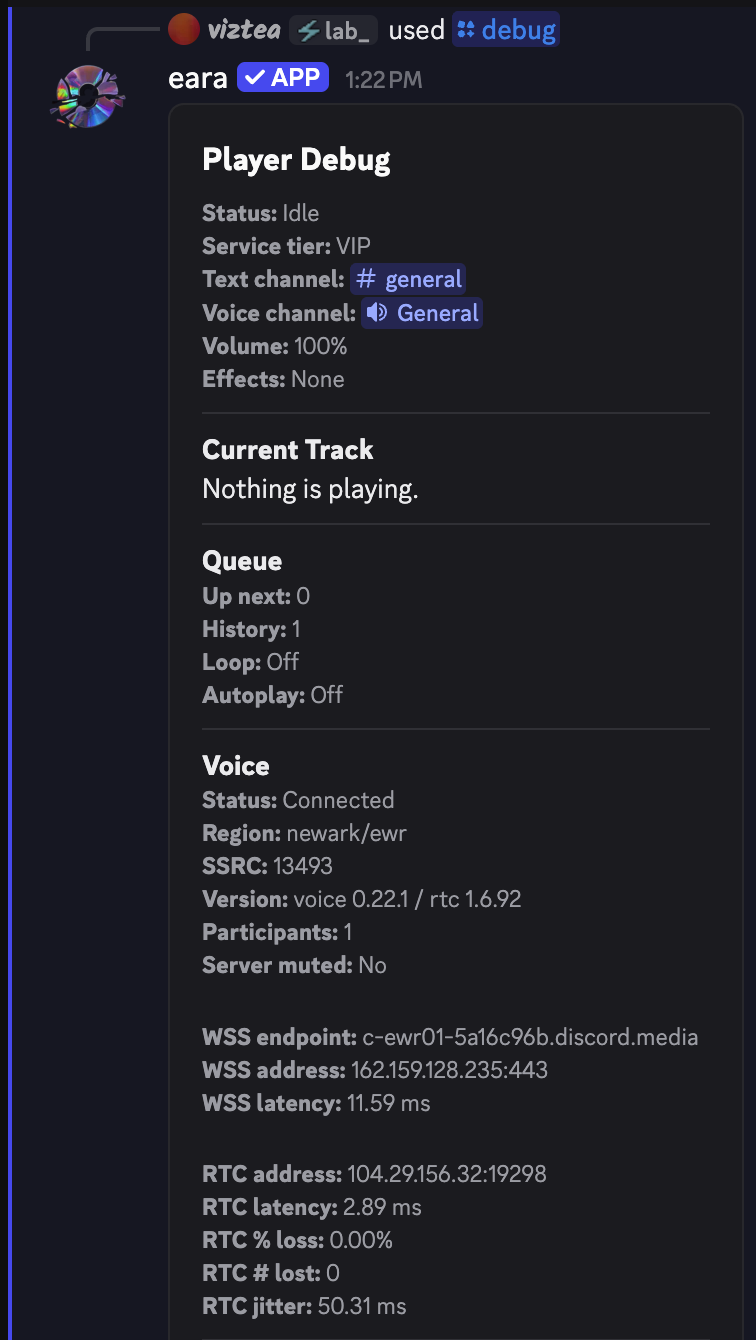
Run to see the player's state. It often points straight at the problem:
- Status — playing, paused, loading, or idle. If it's paused, run .
- Current Track — the song that's playing. If it says Nothing is playing, that may be why you hear nothing; play a song with .
- Voice — the connection Status (connected, joining, reconnecting, or disconnected) and the voice channel's Region.
- Server muted — whether someone server-muted eara. If it says yes, eara can't make any sound until someone unmutes it.
Can other people hear the music?
If everyone else hears the music and you don't, the problem is on your device.
Turn off your VPN or proxy. This is the most common cause, especially 1.1.1.1.
Check your volume
Three separate volume settings can make eara silent:
-
Your device's volume. Make sure it isn't at 0%.
-
eara's user volume in Discord. Right-click eara in the voice channel (tap it on mobile). Check that it isn't muted and that User Volume isn't at 0%.
Right-click eara in the voice channel. User Volume shouldn't be at 0%. -
Discord's output device and volume. Click the small arrow next to the headphones icon at the bottom left of Discord. Make sure Output Device is your headphones or speakers and Output Volume isn't too low.
Click the arrow next to the headphones icon, then check Output Device and Output Volume.
The song may be broken
Sometimes a song fails to play and the player gets stuck on it. Run to move on to the next song.
If that doesn't help, disconnect eara with or the disconnect button, then play the song again.
Why is eara deafened?
eara deafens itself on purpose, so it doesn't hear anyone in the voice channel. Deafened has no effect on the music; only muted stops eara's sound.
Still not working?
Run , copy the output and send it in our Discord server. It's the first thing we'll ask for.